Getting Started: Account, Apiaries, and Colonies
Registration, dashboard overview, and setting up your first apiaries and colonies in Hivekraft -- the complete guide to starting your digital beekeeping.
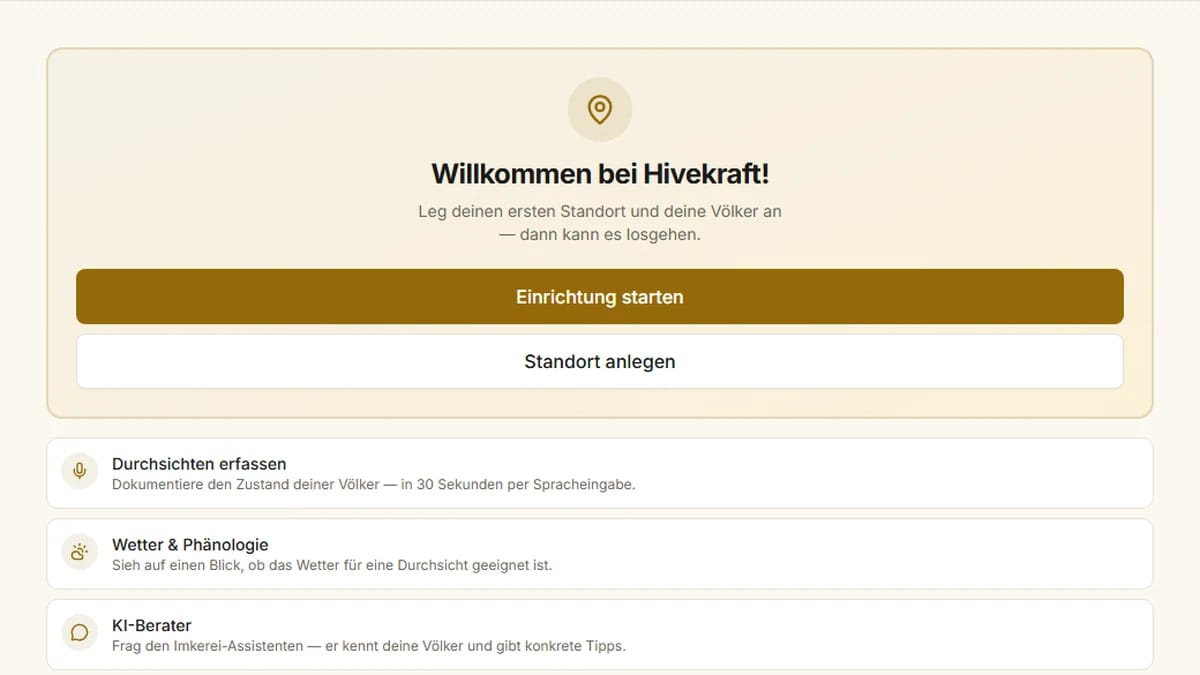 Actual app screen · sample data
You have decided to organize your beekeeping digitally. In this first lesson, we will set up your Hivekraft account together, create your first apiary, and register your first bee colony. By the end, you will have a functional digital foundation for all further steps.
Registration and First Login
Registration with Hivekraft is straightforward. You only need an email address and a password -- or you can use your Google or Facebook account for quick access.
- 1
Create account
Go to hivekraft.com and click Start for Free. Enter your name, email address, and a secure password. Alternatively, you can sign in directly with your Google or Facebook account.
- 2
Confirm email
You will receive a confirmation email. Click the link in it to activate your account. Check your spam folder if the email does not arrive immediately.
- 3
Complete onboarding
After your first login, a short onboarding guides you through the most important settings. You choose your preferred language (German or English) and can immediately set up your first apiary.
Want to explore Hivekraft before creating an account? On the Demo page, you can explore the app with a prepared demo account. There you will find 15 apiaries, 47 colonies, and four years of sample data.
The Dashboard: Your Overview
After logging in, you land on the dashboard. Here you can see at a glance what is happening in your beekeeping operation. The dashboard consists of individual widgets that you can arrange according to your preferences.
The Most Important Widgets
- Statistics cards: Total number of your apiaries, colonies, upcoming inspections, and open tasks
- Weather: Current weather data and forecast for your apiaries (based on DWD data)
- Colony traffic light: Health status of all colonies at a glance -- green, yellow, or red
- Treatments: Active Varroa treatments and outstanding recommendations
- Daily plan: Upcoming tasks for today, prioritized by urgency
- Quick notes: Space for brief notes you want to keep right on the dashboard
Choosing Dashboard Presets
Depending on your experience and preferences, you can choose between three predefined layouts:
- Standard: Clear, single-column overview. Ideal for beginners and beekeepers who prefer a clean view
- Compact: Two-column layout with more widgets visible at once, including AI daily briefing and year-over-year comparison
- Pro: Three-column layout with all available widgets, IoT overview, and analytical comparisons
You can find the preset selection via the Edit Layout button on the dashboard. Click Presets there to switch between the three layouts. The switch takes effect immediately, and you can switch back at any time. Start with Standard and move to Compact or Pro when you feel more comfortable.
Navigation: Finding Your Way
Hivekraft uses a sidebar navigation on desktop and a bottom navigation on smartphones. The main sections are:
- Dashboard: Your home screen with the overall overview
- Apiaries: All your bee yards with map view
- Colonies: List of all colonies with filter options
- Inspections: All documented inspections
- Treatments: Varroa treatments and colony record book
- Harvests: Honey harvests with batch and label management
- Settings: Profile, language, dark mode, and more
Setting Up Your First Apiary
An apiary in Hivekraft corresponds to a physical bee yard -- the place where your hives are located. Most hobby beekeepers have one or two apiaries; migratory beekeepers may have considerably more.
- 1
Open apiaries
Click Apiaries in the sidebar, then click the Create New Apiary button (the plus icon in the top right).
- 2
Name and description
Give your apiary a descriptive name, for example "Back Garden" or "Rapeseed Field North". A short description is optional but can be helpful when you have multiple apiaries.
- 3
Address and GPS position
Enter the address of your apiary. Hivekraft automatically determines the GPS coordinates and shows the location on the map. You can also set the position directly on the map by clicking, in case automatic detection is not accurate enough.
- 4
Save
Click Save. Your apiary is now set up and appears in the apiary list as well as on the map view. Based on the GPS position, Hivekraft will now provide local weather data for this location.
You get the most accurate position when you create the apiary directly on-site using your smartphone. The device then uses GPS for precise positioning. This is particularly important for weather data, which is based on a 5.5 km grid.
Registering Your First Colony
Now it gets concrete: Your first colony gets its digital hive record.
- 1
Create colony
Open your newly created apiary and click Add Colony. Alternatively, you can create a new colony via the Colonies section in the sidebar and assign it to an apiary.
- 2
Enter basic data
Give your colony a name (e.g., "Colony 1", "Sun Colony", or a number) and select the hive type (e.g., Dadant, Zander, Langstroth). Enter the breed if known (e.g., Carnica, Buckfast).
- 3
Record queen information
If you have information about your queen, you can enter it right away: the birth year (automatically determines the marking color), the origin (own breeding, purchased, swarm), and whether she is marked.
- 4
Set status and save
Choose the current status of the colony (active, nucleus, being dissolved) and save. Your colony is now set up and ready for its first inspection.
Adjusting Settings
Before you really get started, it is worth taking a look at the settings:
Language
Hivekraft is fully available in German and English. You can find the language setting in Settings or via the language switcher in the navigation.
Dark Mode
For working in the evening or in low ambient light, you can activate Dark Mode. You will find the toggle in the upper navigation. This also saves battery on OLED displays.
Personalizing the Dashboard
In addition to the three presets (Standard, Compact, Pro), you can show and hide individual widgets. This way, you can customize the dashboard to match your workflow exactly.
Hivekraft is optimized as a web app for smartphone use. You do not need to install a separate app -- simply open hivekraft.com in your mobile browser. The bottom navigation and adapted layouts ensure everything works well on small screens too.
Creating Multiple Apiaries and Colonies
Repeat the steps above for each additional apiary and colony. A few tips for organization:
- Consistent naming: Use a system that is logical for you. Numbers (C1, C2...) or descriptive names (Garden Colony, Rapeseed West) -- the main thing is you can find them again
- Apiaries first: Create all apiaries first, then the colonies. This way, you can assign each colony directly to the correct apiary
- Add queen later: You do not need to have all data right away. Queen information can be added or updated at any time
Data Security and Free Starter Plan
Your Data Is Secure
Hivekraft is developed in Germany and hosted on German servers. All data is subject to GDPR and is transmitted encrypted. Your colony data, apiaries, and inspections are only visible to you -- unless you actively choose to share something in the community.
Start for Free, Upgrade When Needed
The free plan of Hivekraft is entirely sufficient for most hobby beekeepers. You can create up to 5 apiaries and 10 colonies, document inspections, use the Varroa dashboard, and record harvests. The Pro plan offers additional features like more apiaries and colonies, unlimited voice input, the full-length AI daily briefing, and expanded export options.
You can use Hivekraft for free as long as you like. There are no hidden costs and no expiration date for the free plan. If you ever need the Pro features, you can upgrade at any time -- and switch back again.
Setup Checklist
Knowledge Check
In the next lesson, you will learn about the digital hive record -- the heart of colony management in Hivekraft.